Introduction to CNC Machining
CNC machining is a big topic to jump into. It requires machine tools, software, plus a lot of process information, to make quality parts. It’s become much more accessible in the past couple of years, but it’s still a little like drinking from a firehose when you get started.
CNC stands for Computer Numerical Control, a process where a computer controls the movement of a machine tool. CNC machines can range from small desktop units used to carve wood and plastics to massive industrial machines used for milling complex shapes out of large pieces of metal. While the scale of these machines differs greatly, the principles and the process are identical.
My journey in CNC started with a small desktop milling machine owned by my employer almost 20 years ago. I had no clue what I was doing, but I loved the technology. Since then, I’ve written a lot of CNC software, including MeshCAM, and I own several industrial CNC machines that are used to make the smaller CNC machines that we sell at https://carbide3d.com .
In almost 20 years, the CNC field has only become more interesting. I’m excited to give your CNC journey a kickstart.
Types of CNC Machines
There are more types of CNC machines than you can imagine. CNC machines can be used for milling, routing, grinding, 3D printing, laser cutting, and engraving. Each type of machine uses different techniques, hardware, and software.
CNC mills and routers are the most common types, so those will be the focus of this document.
CNC Mill vs. CNC Router
CNC mills and routers are functionally identical. They both move a rotating cutter through the material to be cut.
CNC mills are generally much larger and heavier than CNC routers and are based on a moving-table design. This moving table architecture is very rigid so a CNC mill can cut a range of materials with good surface finishes.
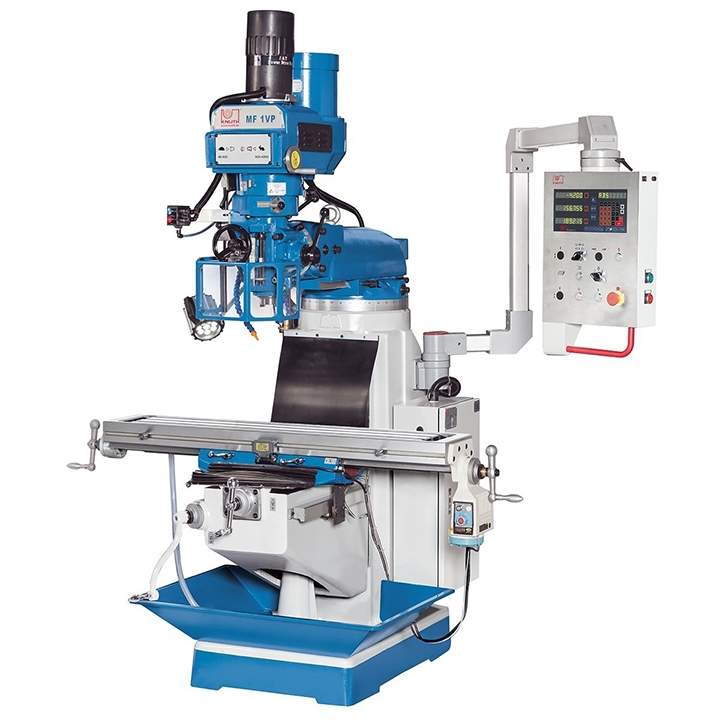 A Bridgeport-style CNC mill
CNC Routers are usually based on a moving gantry design that is ideal for cutting large sheet stock without taking up a massive amount of space. The moving gantry design is very space efficient but is not nearly as rigid as the moving table design used in a CNC mill.
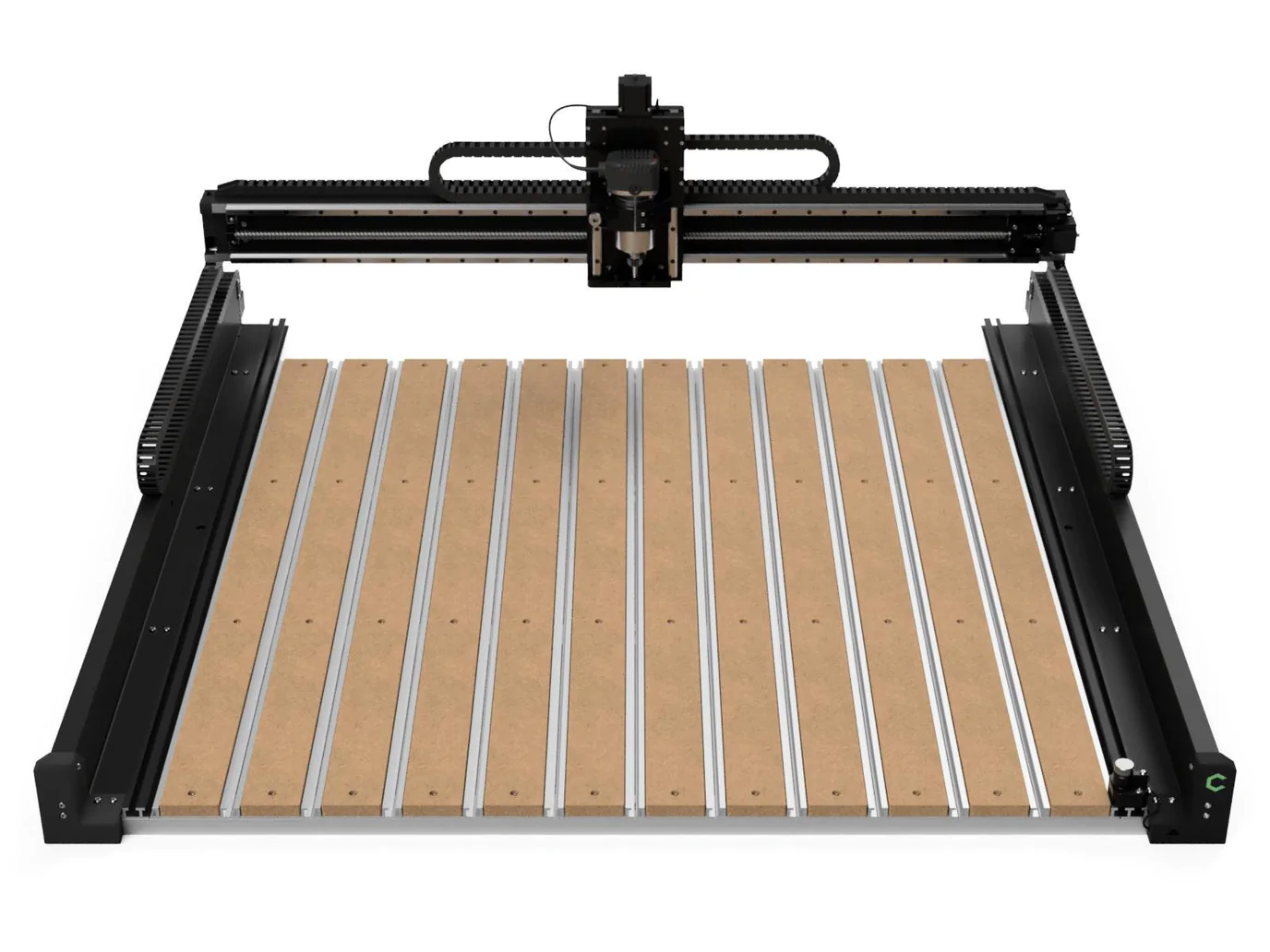 A Shapeoko 5 Pro CNC router from Carbide 3D. This model has a 4 x 4 foot cutting area.
We’ll use the terms “CNC mill” and “CNC Router” interchangeably for simplicity.
CNC Workflow
CNC technology is attractive to people because it combines very accurate automated cutting tools with the precision of computer design software. The software and machine tools have improved as computing power has improved, but the CNC workflow has been unchanged for the better part of 30 years.
The CNC workflow consists of three main steps:
- Designing your part in CAD software.
- Creating the G-code program from the CAM software.
- Running the G-code on your CNC machine.
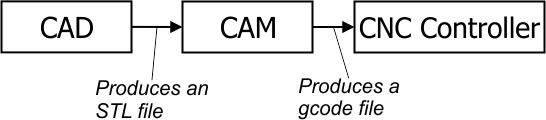
The CNC workflow is not difficult to understand, but it does require some technical knowledge of CNC machines and software.
CAD Software
The CAD (Computer Aided Design) software is where you design the part you want to cut.
CAD software can be a simple 2D design program, like Adobe Illustrator or Corel Draw, or as advanced as high-end programs like Solidworks and Autodesk Inventor.
The output from your CAD program will be one of several file types:
- SVG and DXF - 2D file formats that can represent basic part outlines
- STL - a 3D format initially made for 3D printing that can represent files of almost any complexity (at the expense of large files and a slight loss of accuracy)
- STEP - a 3D format used by higher-end CAD programs that can efficiently represent almost any shape without any loss of accuracy.
CAM Software
CAM (Computer Aided Manufacturing) software takes a 3D or 2D file from your CAD software and creates a series of cutter moves that will create your part. These moves are called a “toolpath” and are saved to a file format called “G-code.”
“G-code” is the language of almost every CNC machine. Like any language, there are dialects of G-code, and each manufacturer uses a slightly different version of G-code than the next. To support these different dialects, your CAM software will include several “post processors” that support a range of CNC machines.
Machine Control Software
No matter what type of CNC machine you have, it will use a computer to coordinate the motion of all of the motors in your CNC to cut your part. Some machines include an embedded computer, some use a standard desktop or laptop, and some use both. In all cases, this computer is used to load a G-code file, interpret the motion, and break it down into smaller motions that can be executed.
The machine control software will be provided with your machine because it’s generally tightly integrated with all of the electronics in your CNC machine.
While you will not usually have any choice about what controller comes with your machine, it’s worth paying attention to what that software is because it will act as the control panel for your machine when you’re running a job on it.
Choosing CAD Software
CAD software is a very personal choice because you’ll need a program that fits the types of parts you plan to make and the way you think.
Below is a list of starting points. It’s in no way complete because there are a huge number of CAD programs available Since the prices can change all the time, prices will be listed as:
- $ - Low cost, usually a few hundred dollars
- $$ - Medium price, more than a few hundred dollars, but less than a thousand
- $$$ - Expensive and priced for professional use
Free-form Artistic CAD Programs
If you care more about achieving the perfect organic shape and don’t need perfect dimensional accuracy, then you might want one of the more organic CAD programs. These use sculpting metaphors to make a part rather than traditional drafting techniques. Take a look at:
Silo3d ($) https://www.nevercenter.com/silo/
Zbrush ($$) https://www.pixologic.com/zbrush/
Mudbox ($$) https://www.autodesk.com/Mudbox
Blender (FREE) https://www.blender.org
These programs will be great for anything from woodworking to jewelry to action figures. They all have a unique process, so it’s worth trying several of them to see what fits your style better.
Free-form CAD Programs for Accurate Parts
The artistic programs above are for a select group of users who love a complete lack of structure so they can be free to do anything. This freedom typically comes with a significant cost- making dimensionally accurate parts is very difficult. For example, if you need to make a canopy for an R/C airplane or the neck of a guitar, then you want to ability to make nice compound curves, but you also need the finished part to fit into the rest of the project.
If this sounds like you, the programs below would be a great starting point. They include a high-accuracy modeling kernel without imposing a strict workflow.
Rhino ($$) https://www.rhino3d.com
Viacad ($) https://www.punchcad.com/punch-viacad-2d-3d-v12
Sketchup ($) https://www.sketchup.com
Shapr3d ($) https://www.shapr3d.com
Tinkercad ($) https://www.tinkercad.com
Parametric Mechanical CAD
When you want absolute precision and a clean workflow, there is no substitute for a parametric CAD program. The “parametric” description comes from the way that shapes are defined. Rough sketches and operations like extrusions or cuts are defined first, then the exact dimensions and sizes are added, and the part updates to the new size.
The power of this approach is that part dimensions can be changed, and the whole part will update (mostly) automatically. Programs like Rhino and Viacad would require you to redraw the part from the change forward or move individual surfaces. This ability to adapt to changes is why you will rarely find any manufacturer using anything but a parametric CAD program for a production part.
Alibre ($ to $$$) https://www.alibre.com
Solidworks ($$$) https://www.solidworks.com
OnShape ($$$) https://www.onshape.com
All three programs are similar in workflow but very different in cost. Solidowks is the most popular parametric CAD program out there, but it’s not cheap. Expect to pay $4000 to get started, plus annual maintenance fees. OnShape is similar to Solidworks but runs in the browser and is only available via subscription, not a permanent license. Alibre can do almost everything Solidworks and OnShape can but at a fraction of the cost. It’s worth looking at.
The high price of Solidworks and OnShape will scare many people. If you’re going to live in a CAD program every day, then the amortized cost of the program isn’t that bad if it makes you more productive.
Choosing CAM Software
CAM Software is a lot more straightforward than CAD software, and it’s not nearly as personal a decision.
2D/3D CAM Software
I’m going to be honest here and say that I’m biased toward MeshCAM, https://www.grzsoftware.com, for 3D CAM software because it’s our program. It’s got a totally-free 15-day trial so you can try it before buying it.
MeshCAM loads a wide variety of CAD formats, including:
- STL
- STEP (MeshCAM Pro)
- SVG
- DXF
If you’re someone that likes to buy highly detailed reliefs to machine then the ability to load large STL files will be critical because that’s just about the only format for files like that.
Combined CAD/CAM
There is one other category of CNC program, the combined CAD/CAM program. One example of this is Carbide Create, a 2D design and machining program made by Carbide 3D for their machines. Carbide Create Pro is available for purchase separately for users of other CNC machines.
The interesting thing about programs like Carbide Create is that you can go from a blank page to G-code without leaving the program. For applications that are primarily 2D, like many woodworking projects, this is a very efficient workflow.
How to Choose Software
The list above is a lot to digest, and you might be left thinking, “How do I pick?” Here are a few suggestions:
Try everything. Every decent program will have a free trial, so you should take advantage of that to see what works best for you. Do not buy a program without trying it.
Price. Pick something that’s in your price range, but try programs a little beyond your budget to compare. Some users are reluctant to pay too much for software, especially if they bought a cheaper CNC machine, but that’s a bad idea. You’ll spend more time working with your software than using your CNC machine, so good software is worth the investment.
Perpetual license or subscription. Some software can only be purchased as a perpetual license, and some are only available as a subscription. Subscription software is much cheaper to get started with, and you can always cancel if you end up wanting something different. That said, you’ll never own it.
Pick the right platform. Most CAD/CAM software is Windows-only, which may or may not be a problem for you. A few programs, like OnShape, are web-only cloud programs. Pick a program that runs on the platform you’d like to use, whether that’s Windows, Mac, or in a browser.
Ease of use, learning curve. Even the most basic CAD/CAM programs are fundamentally complicated, so they’ll take time to master. Better programs try hard to make the learning curve as gentle as possible while leaving a lot of power as you gain more experience. Some programs don’t even attempt to hide the complexity.
Cutters and Endmills
End mills, also called cutters, are the actual cutting device on a CNC machine. People with from a woodworking background frequently call them “bits,” but don’t do that around a machinist unless you’re looking to make them twitch just a little.
Thousands of cutters are available in every shape, configuration, and composition. It’s enough to make your eyes glaze over if you don’t know what you’re looking at, but it’s easy enough to distill all of that down into just a few categories.
Cutter Shape
The most important cutter characteristic is the shape and you’ll find that lots of shapes are available. Unless you have good reason to do otherwise, you can ignore all but three core shapes.
Flat Endmills
As the name suggests, flat endmills are, well, flat. More specifically, the overall shape is cylindrical, and the cutting end is flat. As you might imagine, the flat end of the cutter makes it easy to cut horizontal surfaces with the bottom of the tool, or vertical, which is the side of the tool (also called the flank). Any angle other than 0 or 90 becomes more problematic- a flat endmill cannot cut surfaces that are between 0 and 90 degrees.
Ball-End Mills
Ball-End Mills, or Ballmills, replace the flat bottom with half a sphere. The benefit of a ballmill is that you can cut a surface with complex curves and get a very good finish. If you plan on cutting parts with non-flat surfaces then ballmills will be part of your toolbox.
V-Cutters and Engravers
V-cutters and engravers are tapered, sharp cutters that can be used for:
- Engraving
- V-carving
- Chamfering
One detail about V-cutters that sometimes confuses people is that these cutters do not have a tip that comes to an exact point. They usually have a flat tip that’s about .005” in diameter. A flat tip makes the cutter more durable since a fully pointed tip is very prone to breaking.
Flute Length
Another important characteristic of is the flute length, which is the length of the part of the endmill that cuts. In an ideal world, the flutes would be very long so that you could cut deep into the stock without any part of the mill getting in the way. Unfortunately, this doesn’t work in real life.
The longer the flute gets, the more the cutter will bend when it is under load. This bending has two big drawbacks- it makes your parts less accurate because the tip of the cutter is not where the mill expects it to be. The second, and more important problem, is that the bending leads to the cutters breaking.
Generally speaking, “normal” cutters have a flute length that is three times the diameter. For example, a 1/8” diameter cutter would have a flute length of 3/8”. Some so-called stub-length cutters have a much shorter flute length to reduce flex. There are also extra-long cutters with a longer flute length, but they must be treated with care because they are more prone to breaking.
A good rule of thumb is to use the shortest cutter that will work for your project. Shorter flutes let you run your job faster, get better finishes, without having to worry about broken cutters.
Tapered Endmills
A Ballmill or Endmill is also available in one more configuration- with tapered flutes. A tapered cutter had a triangular shape- the sides are tapered at an angle between .5 and 15 degrees. This means that the flute diameter gets larger as they move higher up on the cutter. The benefit of the taper is that you get a finer tip that can safely reach further into your project because of the thicker average diameter.
The tradeoff for the extended reach is that a tapered cutter cannot cut a vertical surface because the cutter itself has no vertical flutes. If your part has no vertical surfaces then you’re fine. If it does, then you have to accept them being cut with a slight taper, or you have to do a second cutting operation with a straight cutter to get them totally vertical.
Despite the limitations, a tapered ball mill is one of my favorite cutters to use.
Number of Flutes
A flute is the actual cutting surface of a cutter, and every cutter has one or more of them. Deciding between a two or four-flute cutter requires a little more explanation.
When your stock is machined, it turns into a bunch of chips as the cutter turns. These chips need to be moved out of the way to make room for more chips to be created. Normally the chips travel up the gap between flutes and are ejected out the top. If the chips remain trapped in the flutes, you will generate more heat or break the cutter.
As you add more flutes to a cutter, the area for the chips to travel up is reduced; you have to be very careful to ensure they are not getting stuck between the flutes.
There is no magic solution where you can guarantee good chip removal, it depends completely on the material you’re machining, the shape you’re machining, and the speed you’re machining at. Until you gain more experience, you should buy cutters with two or three flutes.
Materials
The other big consumable in CNC machining is the material being cut. If you’re looking into CNC machining, then you probably already have a few materials in mind. Rather than an exhaustive list, I’ll just go over some of the big ones and try to cover some unfamiliar ones.
MDF- Everyone starts with MDF, or medium-density fiberboard. You can get it anywhere, and it machines pretty well. You cannot do detailed work with MDF because small details tend to shear off easily. MDF has the benefit of being a cheap, and it’s good for things like pattern making, or testing a cut before committing to a more expensive material.
Hard wood- Every wood can be cut using CNC machines. They might make a mess, and the softer varieties might splinter, but they’ll all cut just fine.
Delrin/Acetal - Acetal, or Delrin if you buy the DuPont version, is a moderately expensive plastic that machines extremely well. Unlike softer plastics that melt and gum up the cutter (remember the thing about chip removal?), Acetal machines quickly and cleanly. Due to cost, it isn’t practical to machine large items with it.
ABS - ABS is one of the most common plastics used today. It works fairly well, although you must ensure that you do not build up too much heat, which causes it to melt and stick to the cutter. Once you get the cutting speeds figured out for your application, you’ll have good luck. It’s also much cheaper than Acetal.
Machinable Wax - Machinable wax is usually used for quickly testing toolpaths that will take a long time to run on much harder or to make sure there are no mistakes before committing to more expensive materials. It is designed to be machined easily and not load up cutters with chips. Jewelers also use wax to make patterns for lost wax casting.
High-Density Foams - You may not be familiar with high-density polyurethane foams, but they are popular in the sign-making industry and for things like movie props and sets. The density can range from 10 to 30 pounds per cubic foot, so they are more durable than other foams you might be familiar with. High-density foams machine well but create gritty dust that goes everywhere; it will take days to get it off you. Despite this, they offer a good way to create large parts that machine well and are lighter than other options like MDF.
Tooling Board - Polyurethane tooling board is a close cousin of the foams mentioned above with a few significant differences- they don’t create the same dust, and they are much higher density. They can range from 20 to 50 pounds per cubic foot and have no “grain.” Tooling board machines really well and is capable of holding incredible surface detail. Tooling boards are popular for pattern making, making product mockups, and testing toolpaths before committing to a more expensive or difficult-to-machine material. This is one of my favorite materials to machine. In particular, I like RenShape 440.
Aluminum - New users are usually scared to begin cutting metal, but cutting aluminum isn’t too different from cutting wood. Use sharp cutters and proper speeds and feeds, and you’ll find aluminum easy to machine.
Brass/Bronze - Brass and bronze tend to machine very well. They are harder than aluminum, requiring more care and preparation, but they machine well. Brass and bronze are available in many different versions (alloys), and some machine much easier than others. Look for alloys that are meant for machining, and you’ll have much better outcomes.
Steel - Steel can be cut by CNC machines, but it’s a hard material, so you’ll need a more rigid and powerful CNC machine. Cutting steel on less rigid CNC machines will lead to faster tool wear due to heat build-up and vibration in the cut.
What’s Next?
Hopefully, you found this document helpful, but just in case it added more questions than answers, here’s a plan of action to get started:
Pick a simple project to make
It’s impossible to try to figure out CNC in the abstract. You need to apply it to a real-world problem that needs to be solved. Pick a project or two that you’ve been wanting to make and start there.
Pick a CAD program
Start with the list of CAD programs above and try one or more of them. Some will speak to you and some will be completely obtuse.
Try MeshCAM
If you’re doing a 2D or 3D project, load the output from your CAD program into MeshCAM (a demo license is available at https://www.grzsoftware.com/download/ ). Try running the G-code output on your machine and see how you like the output.
Try Carbide Create
If you’re doing more of a 2D project, try Carbide Create from https://carbide3d.com/carbidecreate/pro and see if the process works for you.
No matter where you end up, be sure and reach out to let us know what we got right and wrong in this guide at support@grzsoftware.com.